What it does
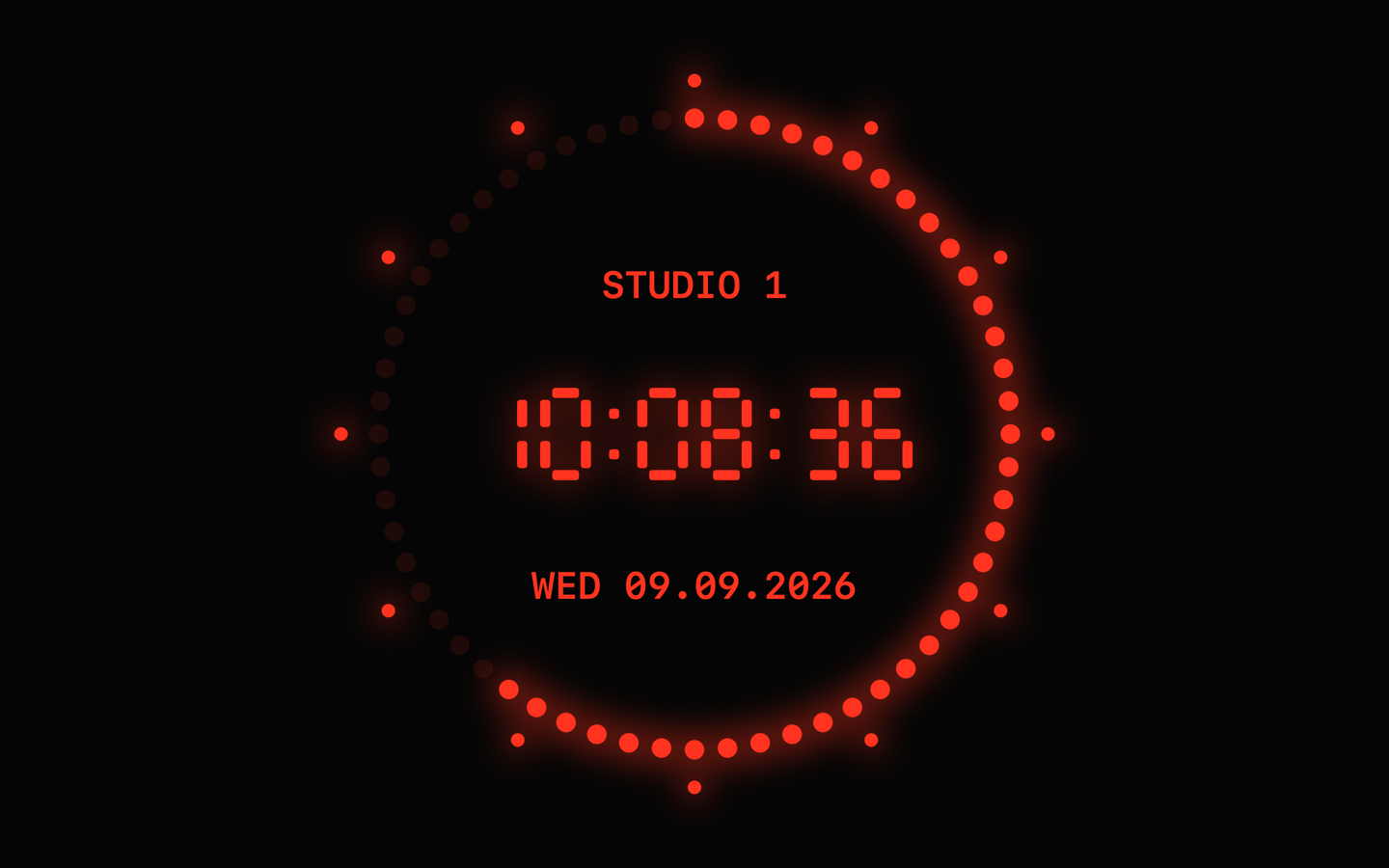
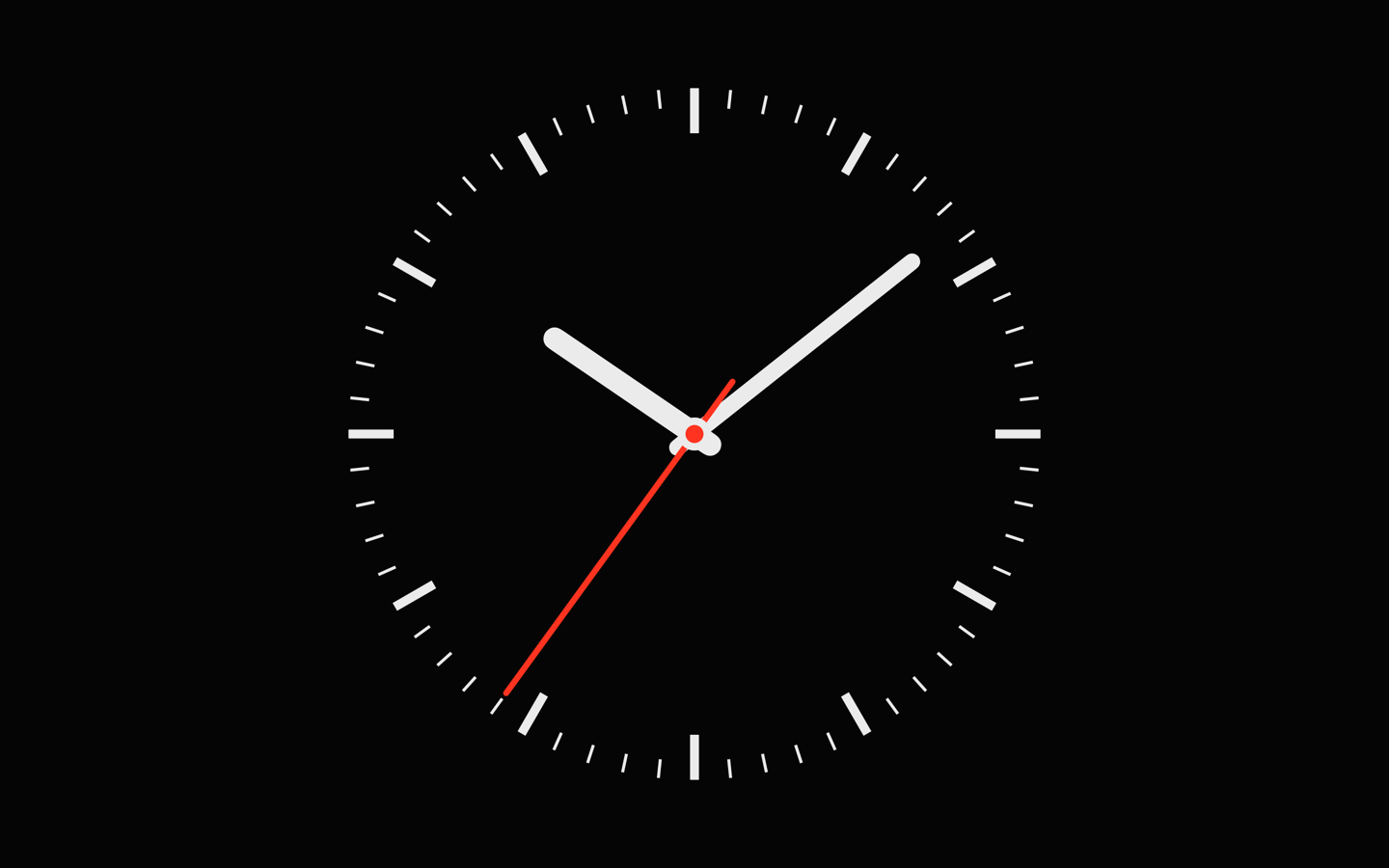
G&L StudioClock puts the clock from the studio wall on your screen: a black face, a ring of 60 red LED second dots with twelve 5-second markers, and a seven-segment HH:MM:SS display. Or switch to a classic analog station clock with a stepping second hand. It is made for screens that show the time all day: a Mac driving a studio monitor, an Apple TV on the wall, an iPad on the desk, a podcast or streaming setup, a rehearsal room, a control room, a newsroom.
Two faces
LED ring in red, green, amber or white with four seconds modes: fill over the minute, single running dot, three trailing dots, or empty over the minute. Or the analog station clock with a stepping or sweeping second hand. Seven-segment or typeface digits.
Time from your time server
Time from an NTP server of your choice: time.apple.com, the regional NTP Pool, PTB or your studio's own server. A small symbol shows when synchronization is being established or the server is unreachable, and the LED colons blink until the time is in sync.
Date, label and more
24-hour time by default where your region uses it, 12-hour optional. An optional date line in the format you choose, with or without weekday and calendar week, a second time zone, and a label such as “STUDIO 1” or “ON AIR” on both faces. Live preview in Settings.
Brightness and night
Face brightness with a night schedule, which dims the face itself, not the display. Optional pixel shift for OLED displays.
Settings sync over iCloud
Face, display and time-server settings follow your iCloud account to your other devices through Apple's CloudKit, in the private database of your own account; the label stays with each screen. Off with one switch; nothing reaches G&L.
Siri, Shortcuts and Control Center
Open the clock or switch the face from the Shortcuts app, or with Siri in English. On iOS 18, Control Center buttons open the clock or start a timer.
Widgets
iPhone: a StandBy, Lock Screen and Home Screen widget. iPad: Lock Screen and Home Screen. Mac: the same widget on the desktop and in Notification Center. All of them show the face minute by minute.
External display and Apple TV
On iPad and iPhone a display connected by cable or AirPlay shows the face alone, full screen, while the device keeps the controls. On Apple TV the clock runs edge to edge, with settings on the Siri Remote.
Built for the Mac
Scales crisply to any window or screen size. “Keep window on top” for use next to other apps; in fullscreen the cursor hides and the display stays awake. “Hide window frame” runs the clock as a bare face without title bar; the frame returns with the switch, with Shift-Command-H or in full screen.
Faces as files
Export the face you see as a .studioclockface file and import it on any Mac, iPhone or iPad; six face presets are included.
Accessibility
VoiceOver reads the time, the sync state and the timer; every control is labelled. Reduce Motion in the system settings turns the sweeping second hand into a stepping one.
Light on resources
Redraws once per second (the analog second hand excepted while it sweeps), so it stays light on battery and CPU. Runs in the App Sandbox.
Show timer
Count down a duration or to a time of day, or count up, alongside the clock. Presets of 1, 2, 3, 5, 10, 15 or 30 minutes and for the next quarter, half or full hour prepare a timer; only Start starts it, so a slip during a show cannot replace a running or paused timer, and a different timer takes over only through “Start next timer” after one confirmation. Towards zero a countdown turns amber, then red with the word ENDING; past zero it keeps counting and shows OVERRUN, because on air the question is not whether it stopped but by how much you are over. On iPhone the running timer also appears on the Lock Screen and in the Dynamic Island; on Apple TV, Play/Pause starts and pauses it; on the Mac there is a Timer menu with shortcuts. The app plays no sound.
Getting started
- Mac: open G&L StudioClock; the LED ring face appears in a resizable window. Control-Command-F for fullscreen, Command-Comma for Settings: face, seconds ring, digits, 24-hour time, date line, label, time source, brightness, timer, window and iCloud.
- iPhone and iPad: tap the clock to show the gear for Settings and the timer button. “Keep screen awake” is on by default and can be switched off to save battery.
- Apple TV: the clock fills the screen. Press the touch surface or Play/Pause to open Settings, Menu to close them.
- Time server: Settings → Time source → “Synchronize with a time server”. The field is prefilled with time.apple.com; the Preset picker also offers the NTP Pool for your region and PTB Braunschweig, or enter your studio's own server.
Requirements
macOS 14 Sonoma or later (Apple silicon or Intel), iOS 17 and iPadOS 17 or later, tvOS 17 or later. One free App Store listing covers all four platforms.
Known limitations
G&L StudioClock is an advisory wall clock, not a timing reference. With a time server configured it corrects the device's clock by the offset of the latest SNTP reply; it is not PTP, not timecode and not frame-accurate, and the reply is checked for plausibility but not authenticated, so the server you enter is the one you trust. PTP is out of reach inside the App Sandbox; use your time server's NTP output. Widgets show the device's system time at minute resolution, not the app's corrected time. Settings sync over iCloud is quick but not instant and runs while the app runs; the time server's address is part of the synced settings, so a studio's internal host name travels through your iCloud account to your other devices. Siri phrases are English only; the Shortcuts app lists the actions in your language.
Privacy
The app collects no data, needs no account, has no ads and no in-app purchases. Apart from iCloud settings sync, the only network traffic is the optional time query to the NTP server you choose (UDP port 123). Settings sync uses your own iCloud account and can be switched off; nothing reaches G&L. Privacy policy.
Support
E-mail apps@gl-systemhaus.de or call +49 221 99809-0 (Cologne, business hours). The support page has the frequently asked questions and what to include in a bug report.
Who makes it
G&L is a systems house for broadcast and streaming technology in Cologne, Germany. We build and run the infrastructure behind radio and TV workflows, and we wanted a clock on our own screens that looks like the ones we install. This is it, free, for everyone who needs a proper studio clock. gl-systemhaus.de